

Hey there, Kubuntu/KDE aficionados!
If you’re anything like me, you made the jump to Linux for control, stability, and maybe a little bit of that freedom vibe. But then, you’re hours deep into a project—tabs open, code compiling, maybe a couple of virtual machines running—and bam!
It pops up. That infuriating little bubble:
- KDE Notification Helper: A system restart is needed to complete the update process.
Seriously? I haven’t even touched the update manager! This notification is a workflow killer. It’s persistent, it’s annoying, and it makes you feel like your system is doing stuff behind your back.
Let’s cut the bull. We’re going to figure out who the culprit is and, more importantly, how to muzzle them permanently.
The Culprit: The Silent Backdoor Upgrader
The reason this happens is an extremely well-intentioned, but ultimately annoying, feature called unattended-upgrades.
In Kubuntu (and most Debian/Ubuntu derivatives), this service is enabled by default. It quietly fetches and installs security updates in the background without needing your direct permission or intervention. While this is fantastic for a server that needs to be perpetually hardened, it’s a pain in the neck for a desktop user who wants to manage their own restart cycles.
When unattended-upgrades installs a critical patch or, most commonly, a new Linux kernel, it drops a special marker file (/var/run/reboot-required). The KDE Notification Helper simply reads this file and throws up that irritating prompt, essentially shouting: “Hey, something important happened! Restart right now!”
Method 1: Muting the Messenger (The Quick KDE Way)
Even if you kill the background installation, the system may sometimes still generate status messages. To mute KDE’s official update checker, Discover, from spamming your notification area, let’s silence the messenger.
- Go to System Settings.
- Navigate to Notifications (or Workspace > Notifications in some older versions).
- Look for Application-Specific Notifications and click the Configure button.
- Scroll down the list and find Discover.
- Click on Discover, then on Configure Events and look for the option that controls Restart is required.
- You can either:
- Uncheck the option to enable or disable the notification entirely.
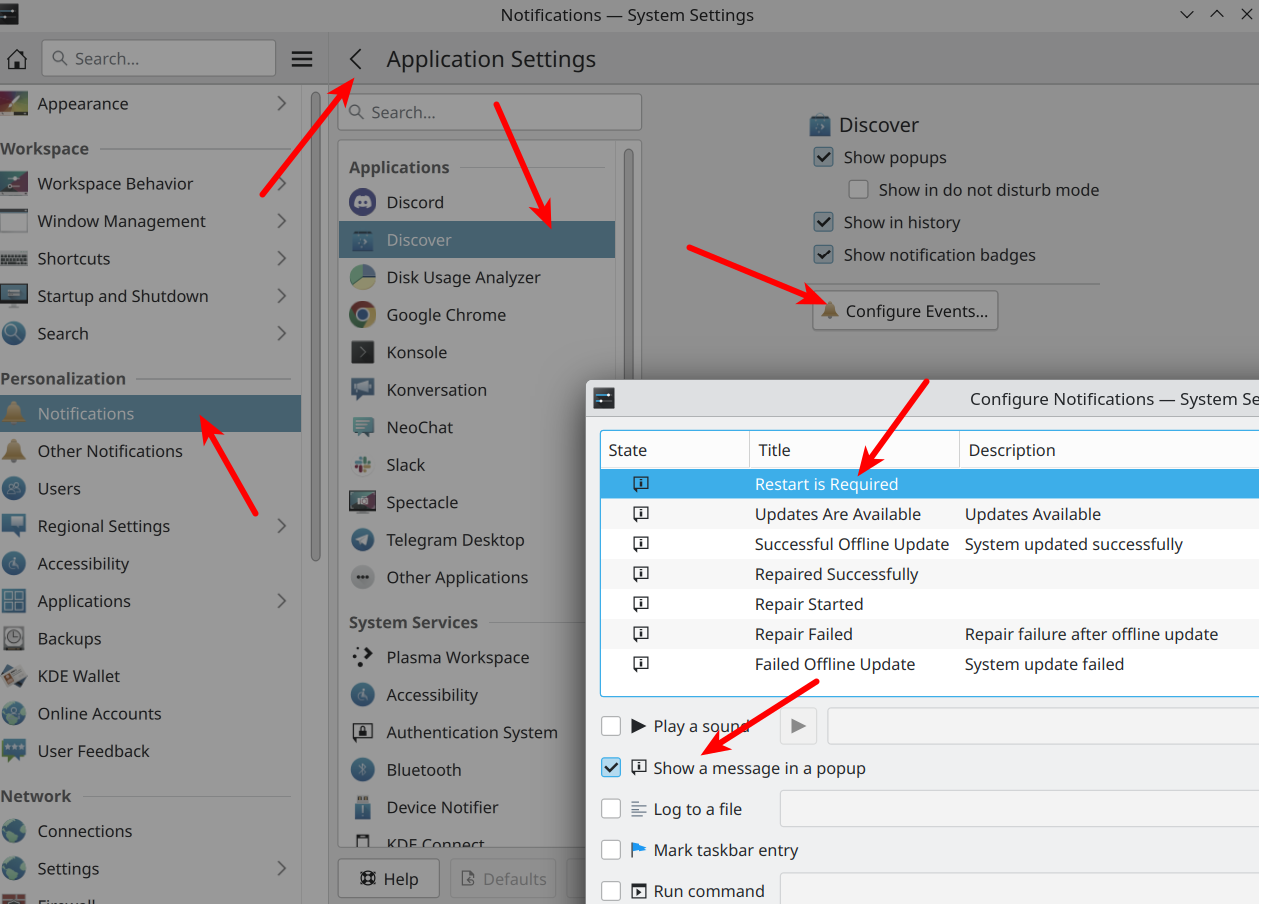
This won’t stop the background updates (Method 2 does that), but it stops the Discover application from using the Plasma Notification system to yell at you about its findings.
Method 2: Shutting Down “Unattended Upgrades” Forever
To regain complete command over when and what gets installed, we need to tell the apt package system to stop its periodic background tasks. We’re going straight to the source by editing one configuration file.
Step 1: Open the Config File
Fire up your Konsole terminal (you know the drill) and use your editor of choice with sudo privileges. I find nano is usually the fastest way to get this done:
$ sudo nano /etc/apt/apt.conf.d/20auto-upgradesStep 2: Zero Out the Install Flags
Inside this file, you’ll likely see two lines where the values are set to "1":
APT::Periodic::Update-Package-Lists "1";
APT::Periodic::Download-Upgradeable-Packages "1";
APT::Periodic::Unattended-Upgrade "1";
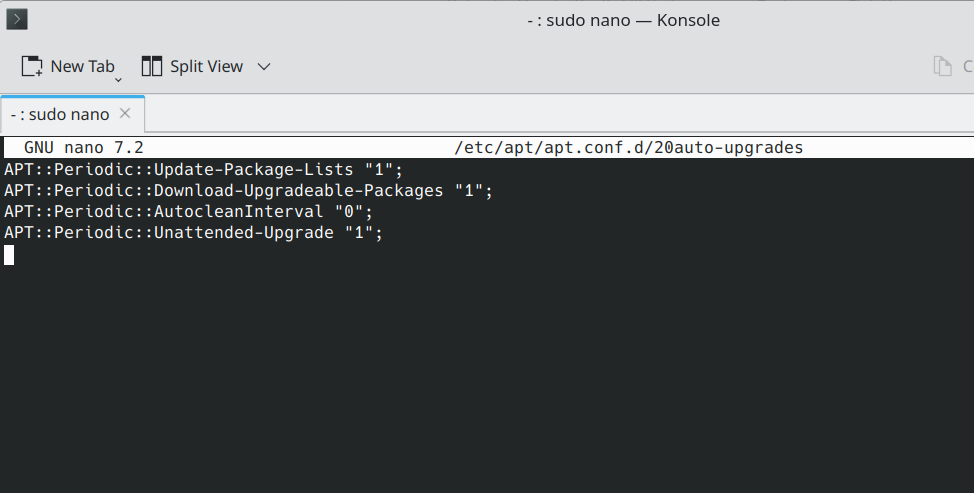
To fully disable both the automatic check and the automatic installation, you need to change both of those "1" values to "0".
Your file should look like this when you’re done:
APT::Periodic::Update-Package-Lists "0";
APT::Periodic::Download-Upgradeable-Packages "0";
APT::Periodic::Unattended-Upgrade "0";
Save and Exit.
Boom. You just killed the automatic background installation of packages. The KDE Notification Helper will no longer get the signal that a restart is needed because the system will no longer be installing stuff without you.
Pro-Tip: Clear the Current Notification
If the notification is currently lurking on your screen, you can manually remove the flags that are calling for the restart. I recommend you reboot first to apply any pending changes. If it still won’t go away, use these commands:
$ sudo rm /var/run/reboot-required*
$ sudo rm /var/lib/update-notifier/dpkg-run-stamp
This physically removes the files the system reads to trigger the prompt.
Important Caveat: The Responsibility Is Yours Now
Disabling unattended-upgrades gives you back control, but it also shifts the responsibility entirely onto you, my friend.
Your system will no longer receive critical security patches automatically.
To keep your machine safe, you MUST make a habit of running manual updates regularly (I’d say at least once a month):
$ sudo apt update && sudo apt full-upgrade

