

I had an annoying problem with my PC today. When I log in, my desktop looks broken. I see a black bar at the top or the wallpaper is in the wrong place.
If I restart Plasma, it works fine. But I don’t want to type commands every time I turn on my computer.
I found out the problem is the Nvidia driver. It does not tell the system the screen size fast enough.
To restart the plasma you can use the next command
killall plasmashell && kstart plasmashellTo find the root cause check journald, like the next
journalctl --user -u plasma-plasmashell -b 0 | grep -Ei "wallpaper|screen|geometry|output|failed"

contents/ui/global/Globals.qml:131: TypeError: Cannot read property 'screenGeometry' of null

Jan 20 06:07:52 homenet100 plasmashell[4366]: file:///usr/share/plasma/plasmoids/org.kde.plasma.notifications/contents/ui/global/Globals.qml:131: TypeError: Cannot read property 'screenGeometry' of null
Here you can see the error that says that system can’t properly understand / calculate your screen geometry.
In my case the screen position is vertical with a small offset on the left (this allows to quickly drag the window to top monitor)
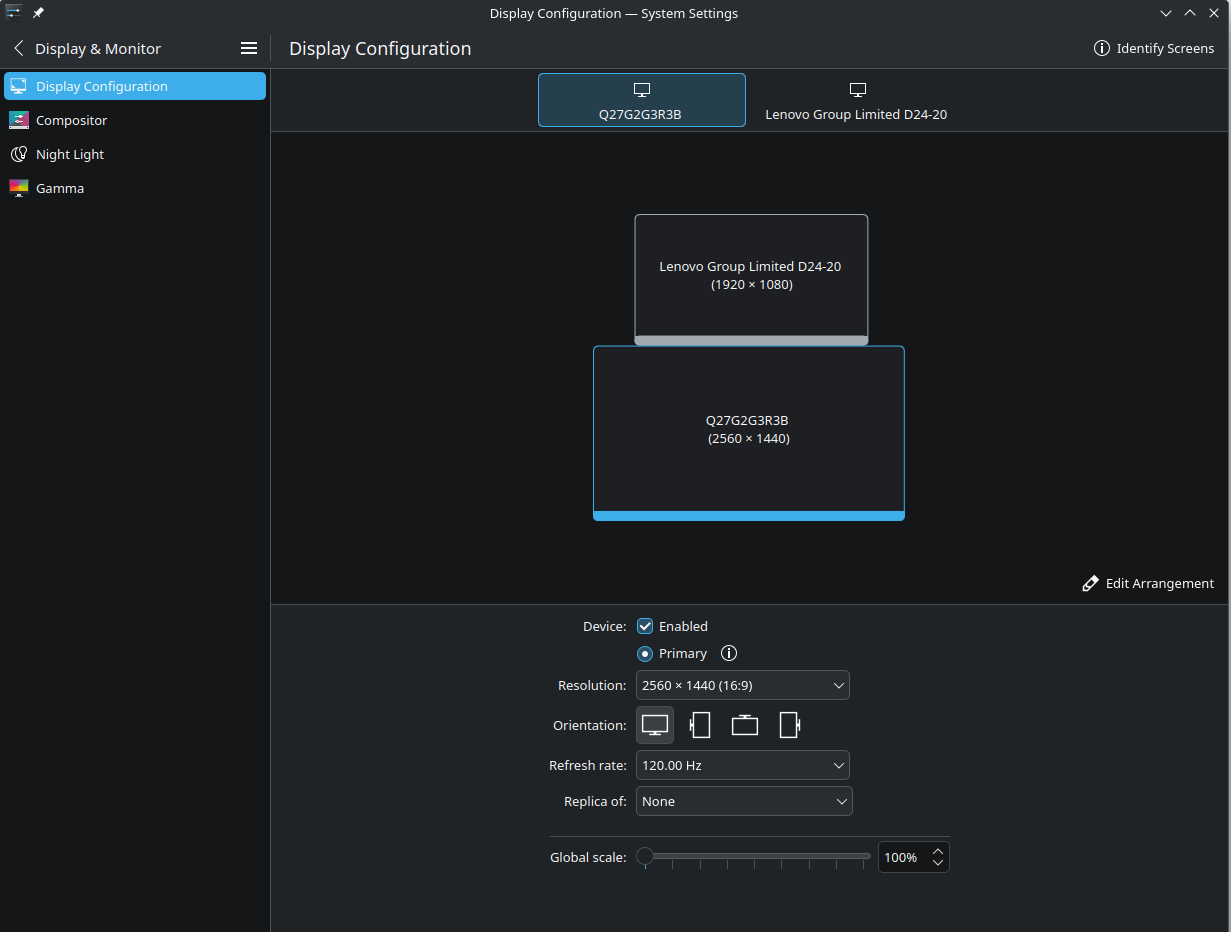
Configurations
Here is some of my configurations
$ xrandr |grep -v "^ "

Screen 0: minimum 8 x 8, current 2560 x 2520, maximum 32767 x 32767

HDMI-0 connected 1920x1080+341+0 (normal left inverted right x axis y axis) 527mm x 296mm

DP-0 connected primary 2560x1440+0+1080 (normal left inverted right x axis y axis) 597mm x 336mm

DP-1 disconnected (normal left inverted right x axis y axis)

HDMI-1 disconnected (normal left inverted right x axis y axis)

DP-2 disconnected (normal left inverted right x axis y axis)

DP-3 disconnected (normal left inverted right x axis y axis)$ modinfo nvidia | grep ^version
version: 580.95.05$ kscreen-doctor -o
Output: 444 HDMI-0
enabled
connected
priority 2
HDMI
replication source:0
Modes: 445:1920x1080@60*! 446:1920x1080@75 447:1920x1080@60 448:1920x1080@50 449:1680x1050@60 450:1600x900@60 451:1440x900@60 452:1280x1
024@75 453:1280x1024@70 454:1280x1024@60 455:1280x800@60 456:1280x720@60 457:1280x720@60 458:1280x720@50 459:1024x768@75 460:1024x768@70 461:10
24x768@60 462:800x600@75 463:800x600@72 464:800x600@60 465:720x576@50 466:720x480@60 467:640x480@75 468:640x480@73 469:640x480@60 470:640x480@6
0
Geometry: 341,0 1920x1080
Scale: 1
Rotation: 1
Overscan: 0
Vrr: incapable
RgbRange: unknown
HDR: incapable
Wide Color Gamut: incapable
ICC profile: incapable
Color profile source: incapable
Brightness control: unsupported
Color resolution: unknown
Allow EDR: unsupported
Output: 471 DP-0
enabled
connected
priority 1
DisplayPort
replication source:0
Modes: 445:1920x1080@60 447:1920x1080@60 448:1920x1080@50 452:1280x1024@75 454:1280x1024@60 457:1280x720@60 458:1280x720@50 459:1024x768
@75 460:1024x768@70 461:1024x768@60 462:800x600@75 463:800x600@72 464:800x600@60 465:720x576@50 466:720x480@60 467:640x480@75 468:640x480@73 4
69:640x480@60 470:640x480@60 472:2560x1440@60*! 473:2560x1440@165 474:2560x1440@144 475:2560x1440@120 476:1920x1080@120 477:1280x1440@60 478:102
4x768@120 479:1024x768@100 480:800x600@120 481:800x600@100 482:800x600@56 483:640x480@120 484:640x480@100
Geometry: 0,1080 2560x1440
Scale: 1
Rotation: 1
Overscan: 0
Vrr: incapable
RgbRange: unknown
HDR: incapable
Wide Color Gamut: incapable
ICC profile: incapable
Color profile source: incapable
Brightness control: unsupported
Color resolution: unknown
Allow EDR: unsupported
Output: 485 DP-1
disabled
disconnected
priority 0
DisplayPort
replication source:0
Modes:
Geometry: 0,0 0x0
Scale: 1
Rotation: 1
Overscan: 0
Vrr: incapable
RgbRange: unknown
HDR: incapable
Wide Color Gamut: incapable
ICC profile: incapable
Color profile source: incapable
Brightness control: unsupported
Color resolution: unknown
Allow EDR: unsupported
Output: 486 HDMI-1
disabled
disconnected
priority 0
HDMI
replication source:0
Modes:
Geometry: 0,0 0x0
Scale: 1
Rotation: 1
Overscan: 0
Vrr: incapable
RgbRange: unknown
HDR: incapable
Wide Color Gamut: incapable
ICC profile: incapable
Color profile source: incapable
Brightness control: unsupported
Color resolution: unknown
Allow EDR: unsupported
Output: 487 DP-2
disabled
disconnected
priority 0
DisplayPort
replication source:0
Modes:
Geometry: 0,0 0x0
Scale: 1
Rotation: 1
Overscan: 0
Vrr: incapable
RgbRange: unknown
HDR: incapable
Wide Color Gamut: incapable
ICC profile: incapable
Color profile source: incapable
Brightness control: unsupported
Color resolution: unknown
Allow EDR: unsupported
Output: 488 DP-3
disabled
disconnected
priority 0
DisplayPort
replication source:0
Modes:
Geometry: 0,0 0x0
Scale: 1
Rotation: 1
Overscan: 0
Vrr: incapable
RgbRange: unknown
HDR: incapable
Wide Color Gamut: incapable
ICC profile: incapable
Color profile source: incapable
Brightness control: unsupported
Color resolution: unknown
Allow EDR: unsupported$ cat /etc/X11/xorg.conf
# nvidia-settings: X configuration file generated by nvidia-settings
# nvidia-settings: version 510.47.03
Section "ServerLayout"
Identifier "Layout0"
Screen 0 "Screen0" 0 0
InputDevice "Keyboard0" "CoreKeyboard"
InputDevice "Mouse0" "CorePointer"
Option "Xinerama" "0"
EndSection
Section "Files"
EndSection
Section "InputDevice"
# generated from default
Identifier "Mouse0"
Driver "mouse"
Option "Protocol" "auto"
Option "Device" "/dev/psaux"
Option "Emulate3Buttons" "no"
Option "ZAxisMapping" "4 5"
EndSection
Section "InputDevice"
# generated from default
Identifier "Keyboard0"
Driver "kbd"
EndSection
Section "Monitor"
# HorizSync source: edid, VertRefresh source: edid
Identifier "Monitor0"
VendorName "Unknown"
ModelName "AOC Q27G2G3R3B"
HorizSync 250.0 - 250.0
VertRefresh 48.0 - 165.0
Option "DPMS"
EndSection
Section "Device"
Identifier "Device0"
Driver "nvidia"
VendorName "NVIDIA Corporation"
BoardName "NVIDIA GeForce GTX 1660 SUPER"
EndSection
Section "Screen"
Identifier "Screen0"
Device "Device0"
Monitor "Monitor0"
DefaultDepth 24
Option "Stereo" "0"
Option "nvidiaXineramaInfoOrder" "DFP-1"
Option "metamodes" "DP-0: 2560x1440_120 +0+1080, HDMI-0: 1920x1080_75 +341+0"
Option "SLI" "Off"
Option "MultiGPU" "Off"
Option "BaseMosaic" "off"
SubSection "Display"
Depth 24
EndSubSection
EndSectionThe fix
The fix here is to define the monitor configuration in xorg.conf. It’s usually a pain, but we’re lucky as we can do this from the GUI. But before any further steps, create a backup of xorg.conf
$ sudo cp /etc/X11/xorg.conf /etc/X11/xorg.conf.bak-2026-01-20When it’s done run Nvidia Settings from the root
$ sudo nvidia-settings Open “X Server Display Configuration” in the sidebar and configure your monitors: specify all the parameters: resolution, frequency, position, etc

After your changes, first of all “Apply” them and make sure that the monitro correctly recognize this new config. If you don’t have specific configuration for the devices inside this file (or don’t know) uncheck “Merge with existing file” during the save, so the new configuration will not artifacts from the old file.
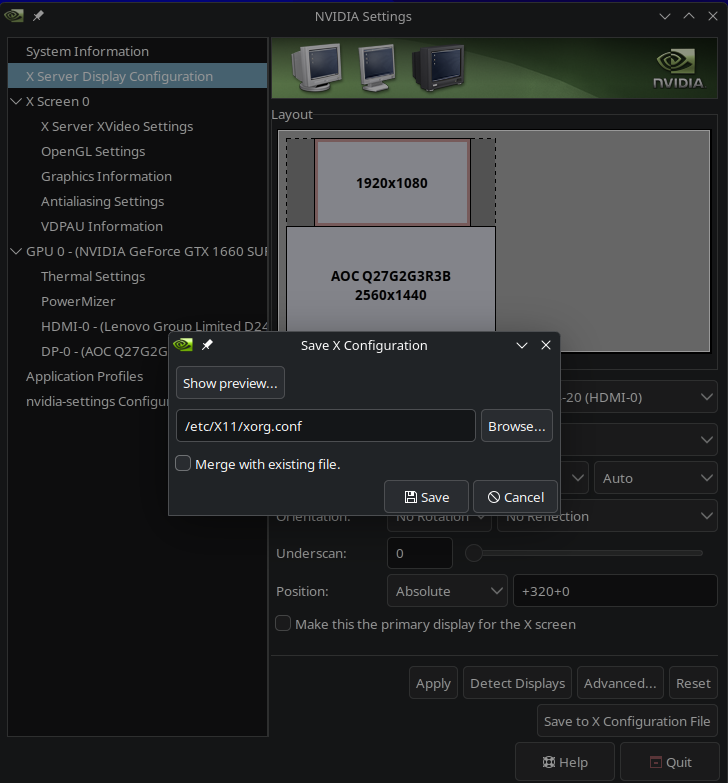
Now you can verify the changes inside your xorg.conf
$ cat /etc/X11/xorg.conf
# nvidia-settings: X configuration file generated by nvidia-settings
# nvidia-settings:  version 510.47.03

Section "ServerLayout"
    Identifier     "Layout0"
    Screen      0  "Screen0" 0 0
    InputDevice    "Keyboard0" "CoreKeyboard"
    InputDevice    "Mouse0" "CorePointer"
    Option         "Xinerama" "0"
EndSection

Section "Files"
EndSection

Section "InputDevice"
    # generated from default
    Identifier     "Mouse0"
    Driver         "mouse"
    Option         "Protocol" "auto"
    Option         "Device" "/dev/psaux"
    Option         "Emulate3Buttons" "no"
    Option         "ZAxisMapping" "4 5"
EndSection

Section "InputDevice"
    # generated from default
    Identifier     "Keyboard0"
    Driver         "kbd"
EndSection

Section "Monitor"
    # HorizSync source: edid, VertRefresh source: edid
    Identifier     "Monitor0"
    VendorName     "Unknown"
    ModelName      "AOC Q27G2G3R3B"
    HorizSync       250.0 - 250.0
    VertRefresh     48.0 - 165.0
    Option         "DPMS"
EndSection

Section "Device"
    Identifier     "Device0"
    Driver         "nvidia"
    VendorName     "NVIDIA Corporation"
    BoardName      "NVIDIA GeForce GTX 1660 SUPER"
EndSection

Section "Screen"
    Identifier     "Screen0"
    Device         "Device0"
    Monitor        "Monitor0"
    DefaultDepth    24
    Option         "Stereo" "0"
    Option         "nvidiaXineramaInfoOrder" "DFP-1"
    Option         "metamodes" "DP-0: 2560x1440_120 +0+1080, HDMI-0: 1920x1080 +320+0"
    Option         "SLI" "Off"
    Option         "MultiGPU" "Off"
    Option         "BaseMosaic" "off"
    SubSection     "Display"
        Depth       24
    EndSubSection
EndSection
The main option here is “metamodes” that says that
- DP-0: 2560x1440_120 +0+1080
- My main (bottom) monitor should have vertical offset 1080 from the top
- HDMI-0: 1920×1080 +320+0
- My second (top) monitor should have 0 vertical offset and 320 pixels from the left.Where 320 is (2560 – 1920) / 2 = 320
The last step is reboot.
That’s it. Now the system knows the exact screen geometry from the start. No more black bars!


